
BEEP Pricing Guide
We offer the following plans for BEEP’s expiration tracking app:- Free Plan
- Premium Plan
- Enterprise Plan
Free Plan
BEEP is free to use for teams managing up to 50 products. It’s a great option if you’re just starting out and want a simple way to manage expiration dates. When you need to track more than 50 products, you can upgrade to BEEP Premium for unlimited tracking and additional features.The 50-product limit in BEEP applies to the entire team, not per person. You can invite as many people as you’d like to join your BEEP team for free.
Premium Plan
BEEP Premium is a paid plan for teams that need more flexibility. It removes the 50-item cap and includes advanced features designed to support larger teams and growing needs.What You Get
- Track unlimited products: Add and manage as many products as your team needs.
- Manage expiration dates: Keep track of product expiration dates with your team.
- No ads: Enjoy an ad-free experience.
- Priority support: Get faster help from our support team.
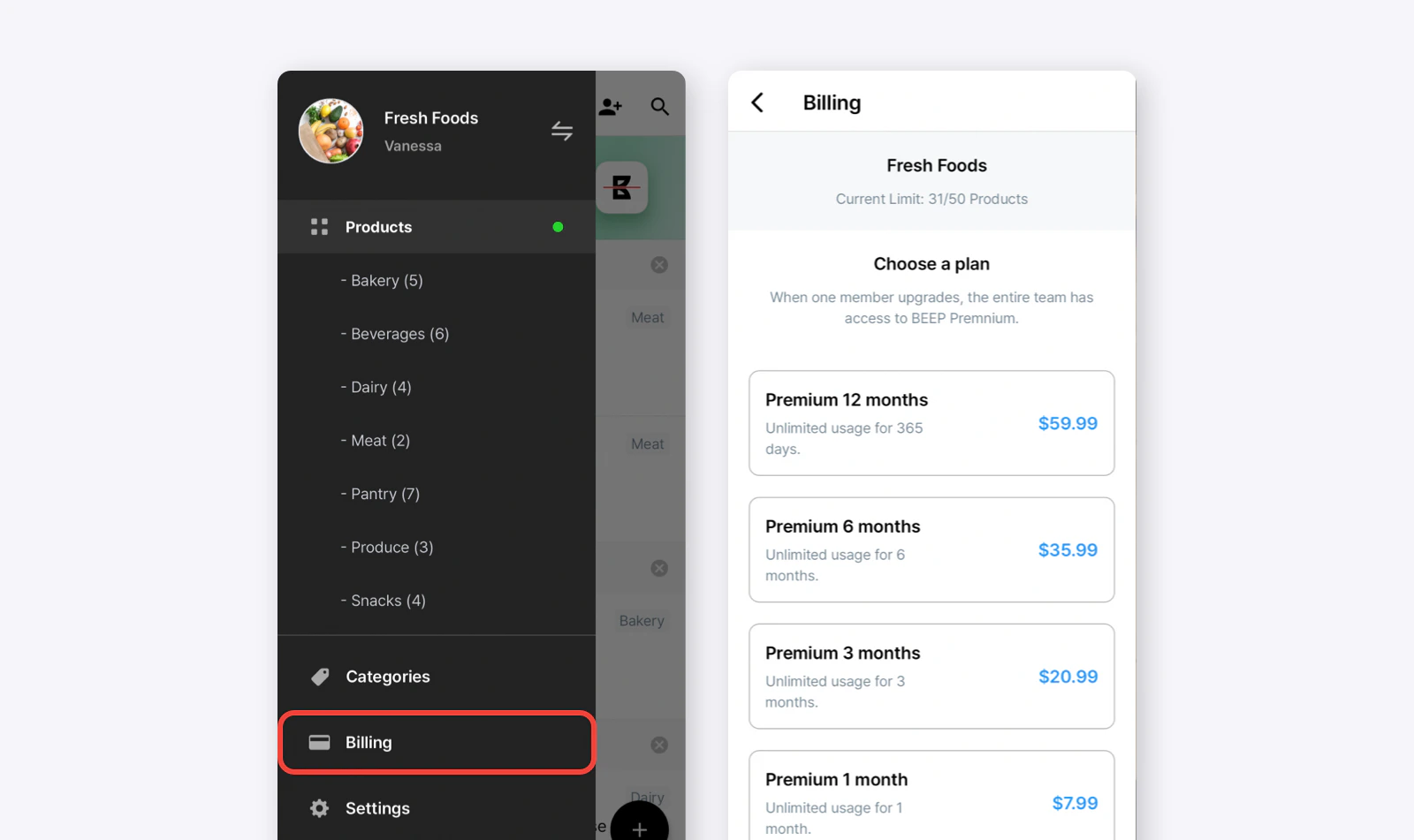
Pricing (per team)
- 1 month: $7.99
- 3 months: 6.99/month)
- 6 months: 5.99/month)
- 12 months: 4.99/month)
Note: For in-app purchases, prices may vary by location and platform.
How to Purchase
Go toMain Menu (≡) > Billing > Choose a Plan. Complete your payment through the App Store or Google Play.
Enterprise Plan
BEEP Enterprise is designed for businesses managing 10 or more teams. It lets you track expiration dates across multiple locations from one central dashboard. To learn more or request an Enterprise Plan, visit BEEP Enterprise Request.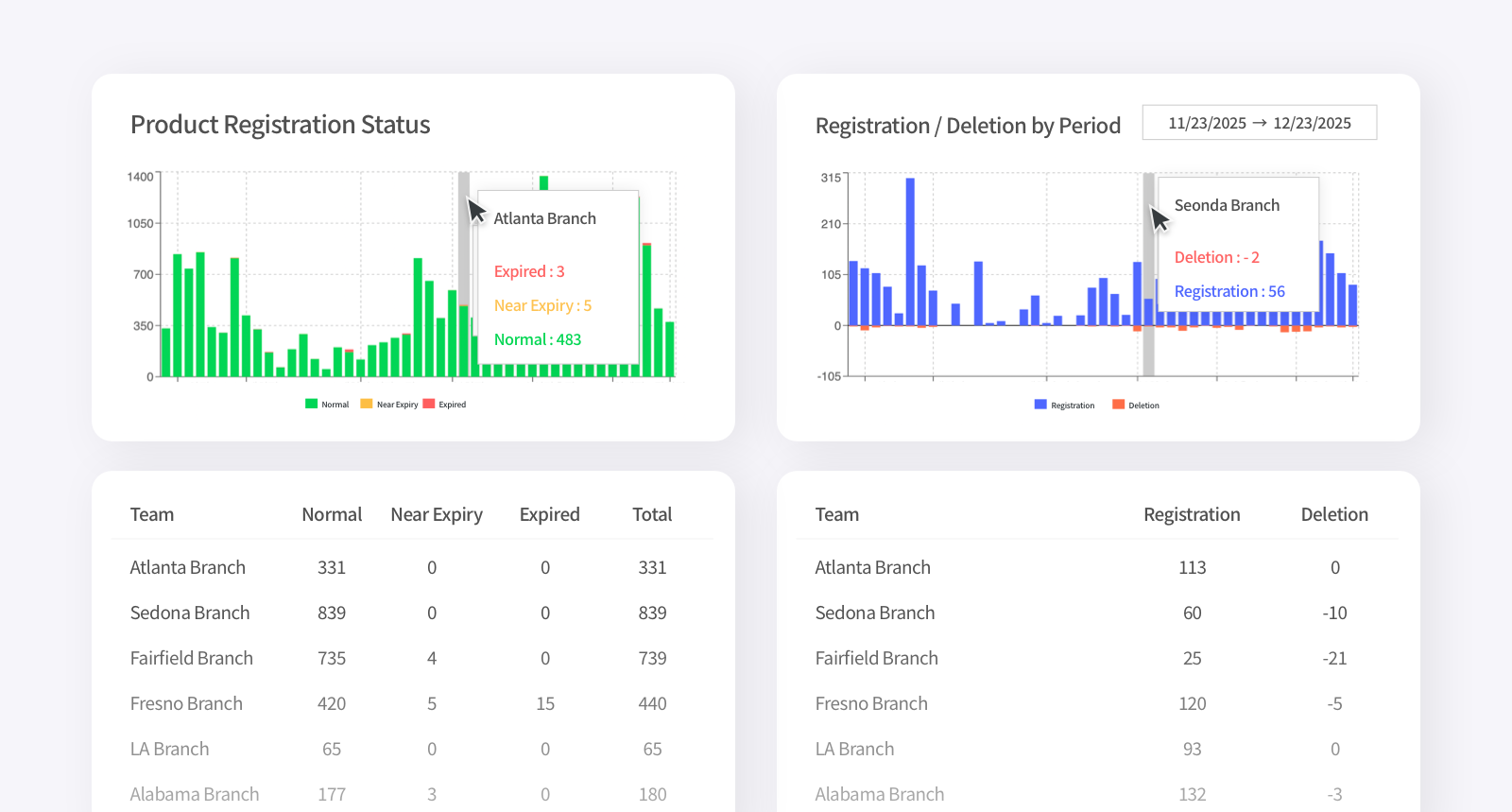
How to Set Up Your Enterprise Plan
- Go to BEEP Enterprise Request and submit a form.
- Our support team will get in touch with you to gather details needed for setup, like your team name, team number, payment confirmation, and company information.
- We will then send you an invoice to complete your purchase.
BEEP Enterprise Authentication
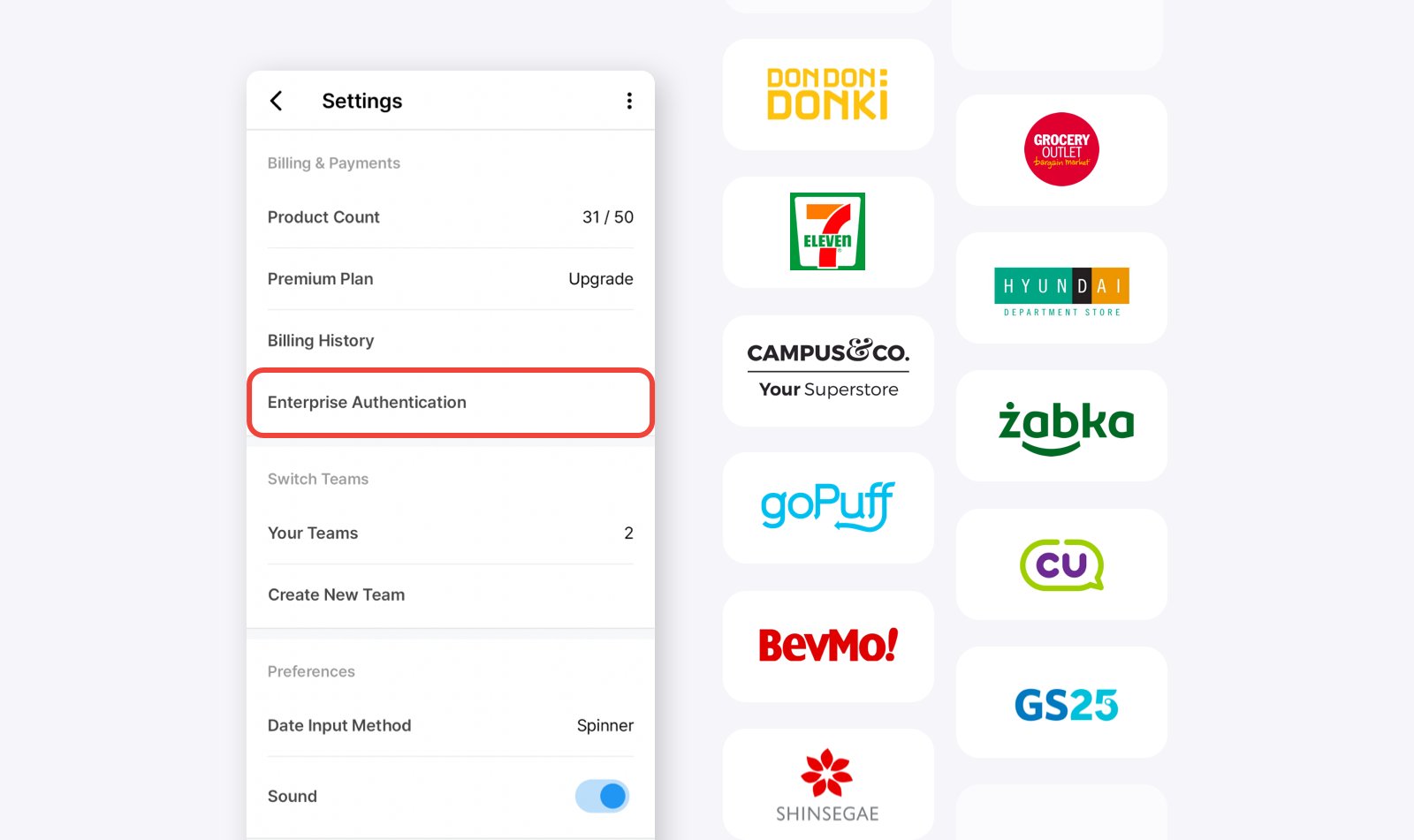
To authenticate your company with BEEP Enterprise, follow these steps:- Go to
Settings>Enterprise Authentication. - Select your company/organization and enter the provided code.
- Once authentication is complete, your company logo will be displayed in the app.
Invoice & Payment
If you made a purchase through an in-app payment, you should receive a receipt from Google Play or the iOS App Store. To access your purchase history:- Apple Users: View purchase history and receipts
- Google Users: Find and manage Google Play purchases
Frequently Asked Questions (FAQ)
Do all team members need to pay for BEEP Premium?
No, only one person needs to purchase BEEP Premium. The entire team will have access to premium features.How can I check my purchase history?
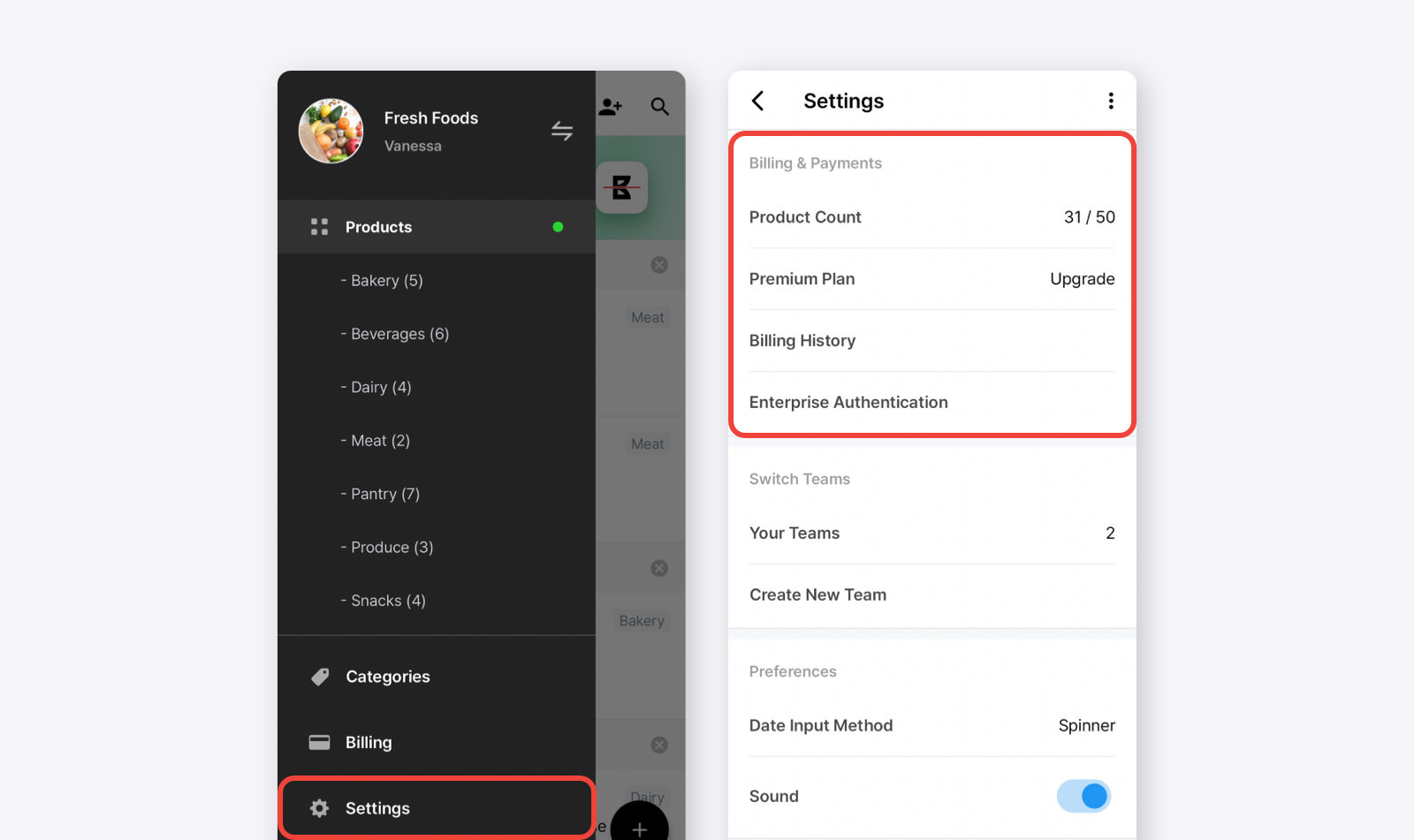
You can view your payment details by following this path:Main Menu (≡) > Settings > Billing & Payments > Billing History.
What happens when my BEEP Premium Plan ends?
Because Premium is prepaid, it doesn’t renew automatically and you won’t be charged when it ends. Once the plan period is over, you’ll return to the free 50-product limit, but you’ll still get expiration alerts for your existing items. To continue with Premium, just make another purchase.Can I add more time before my plan ends?
Yes. If you make another purchase before your current plan ends, the additional time is added on top of your remaining period.What should I do if I paid but still can’t add products?
Please contact us at support@beepscan.com for assistance.How do I update my payment method?
BEEP payments are processed through Google Play or the iOS App Store. Please update the payment method linked to your device.What is the refund policy for BEEP Premium?
Refunds follow the policies set by Google Play and the Apple App Store. If you need a refund:- Android Users: Contact Google Play Support.
- iPhone Users: Contact Apple Customer Support.
- To request a refund from Apple: Apple Refund Request
- To request a refund from Google: Google Refund Request